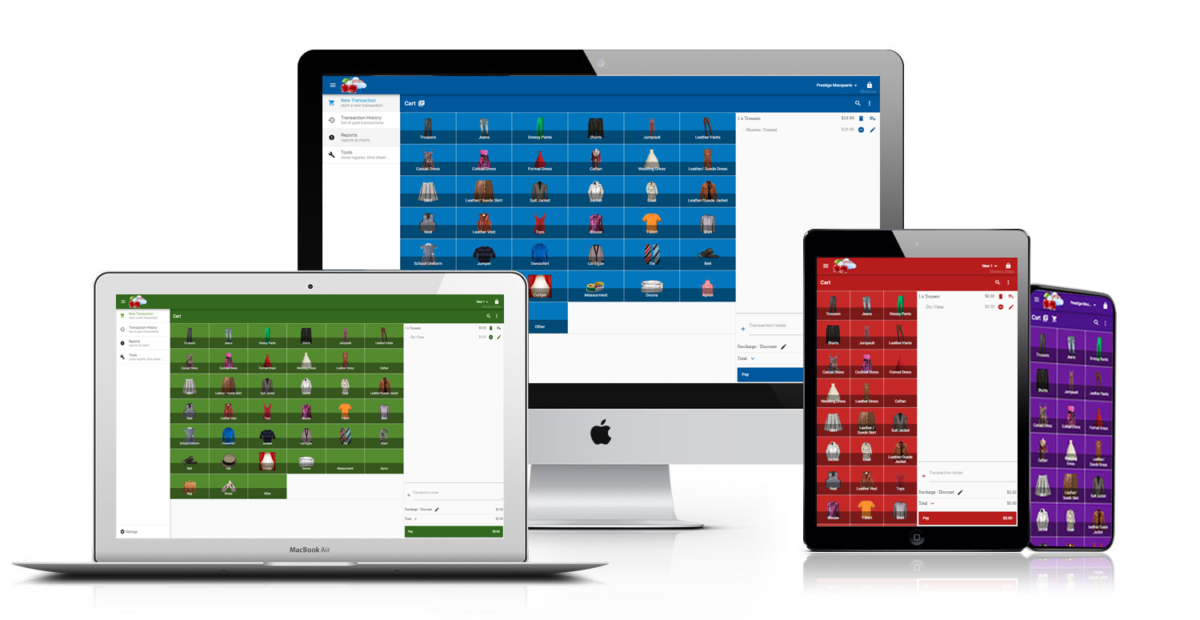
Welcome to the September, 2026 release of features. We hope you like the latest updates in this version, the highlights are as follows:
New Features:
- Two-Way Text Messaging — Customers Can Now Reply
- Conversation View on the Customer Page
- Two Separate Name Fields on the Self-Serve Kiosk
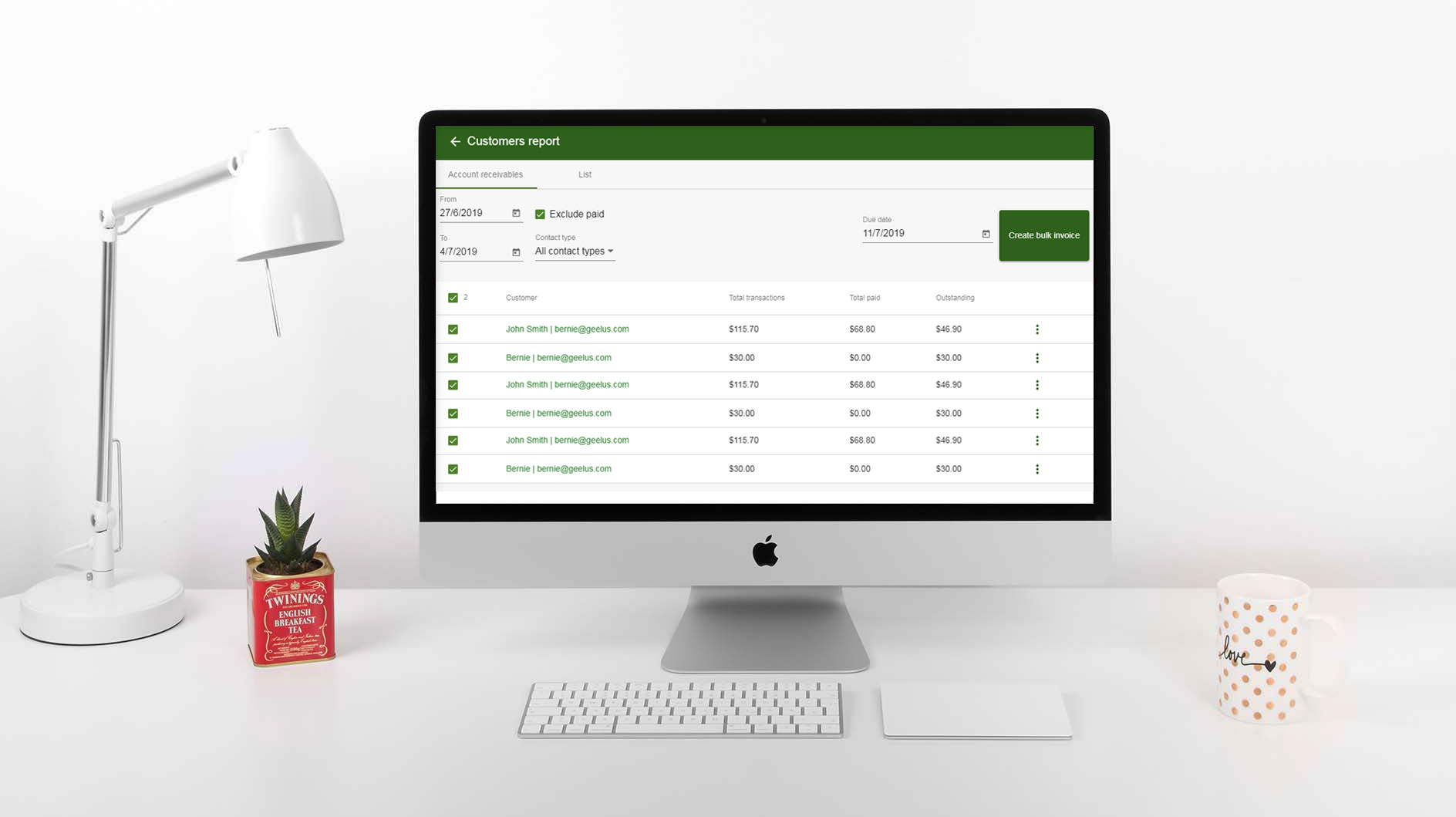
- Bulk Invoices Report Overhaul
Improvements
Two-Way Text Messaging — Customers Can Now Reply
This release introduces full two-way texting. Every message you send can now carry a secure reply link — just click “Add reply link” tag when editing a template or writing a custom message. The customer taps the link, sees their recent conversation with your store (with your own logo on white-label accounts), and can send a reply straight from their browser. No app, no login, and nothing for them to pay — and replies you receive don’t use any of your credits either.
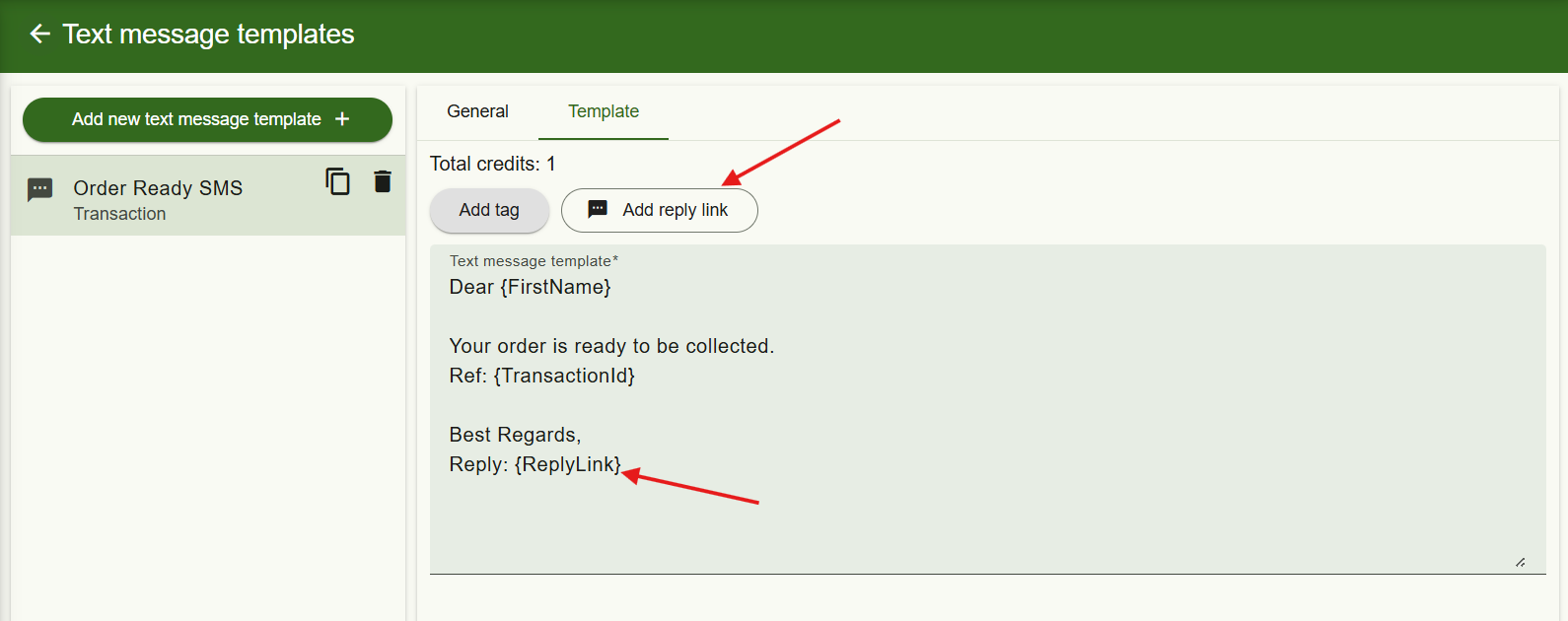
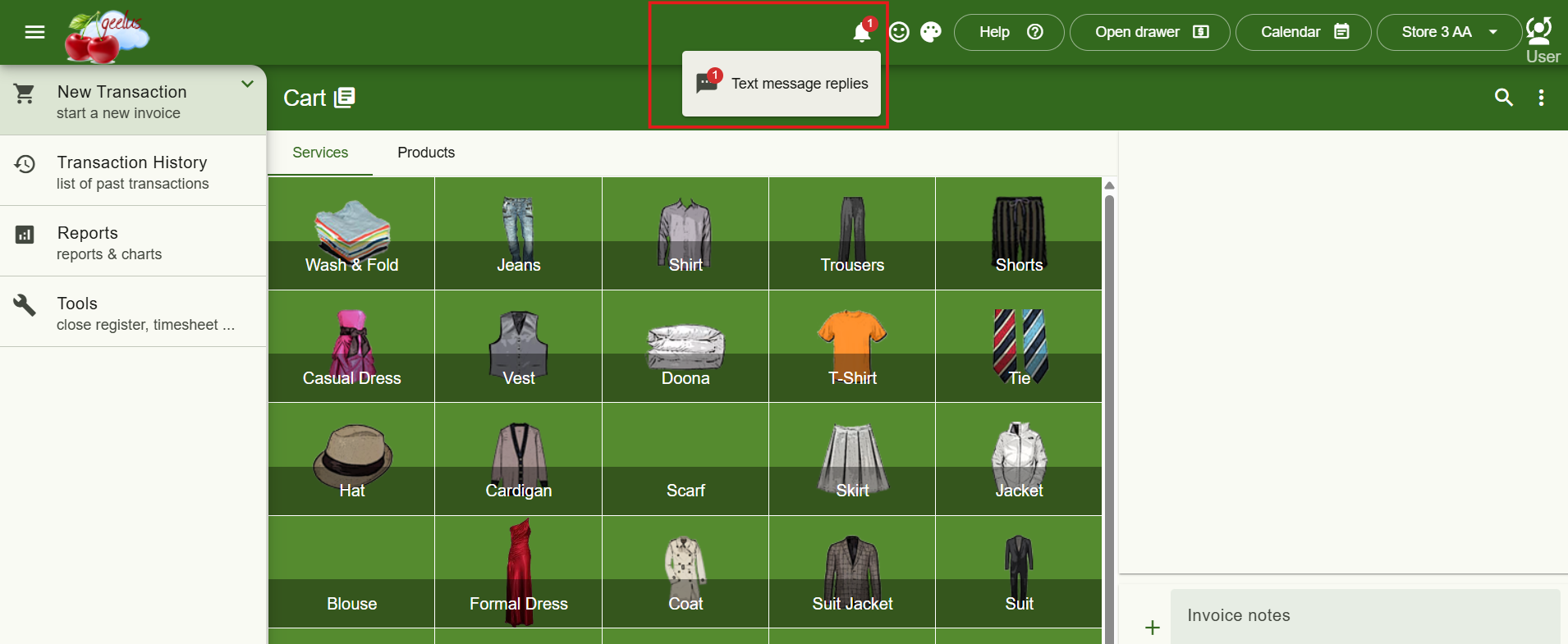
A replies inbox in the app
When a customer replies, you’re notified instantly. The notification bell opens a list showing who wrote, their phone number, the message they replied to, and the reply itself. From there you can open the full conversation, view the customer’s details, or dismiss replies one at a time or all at once — notifications stay put until you dismiss or answer them.
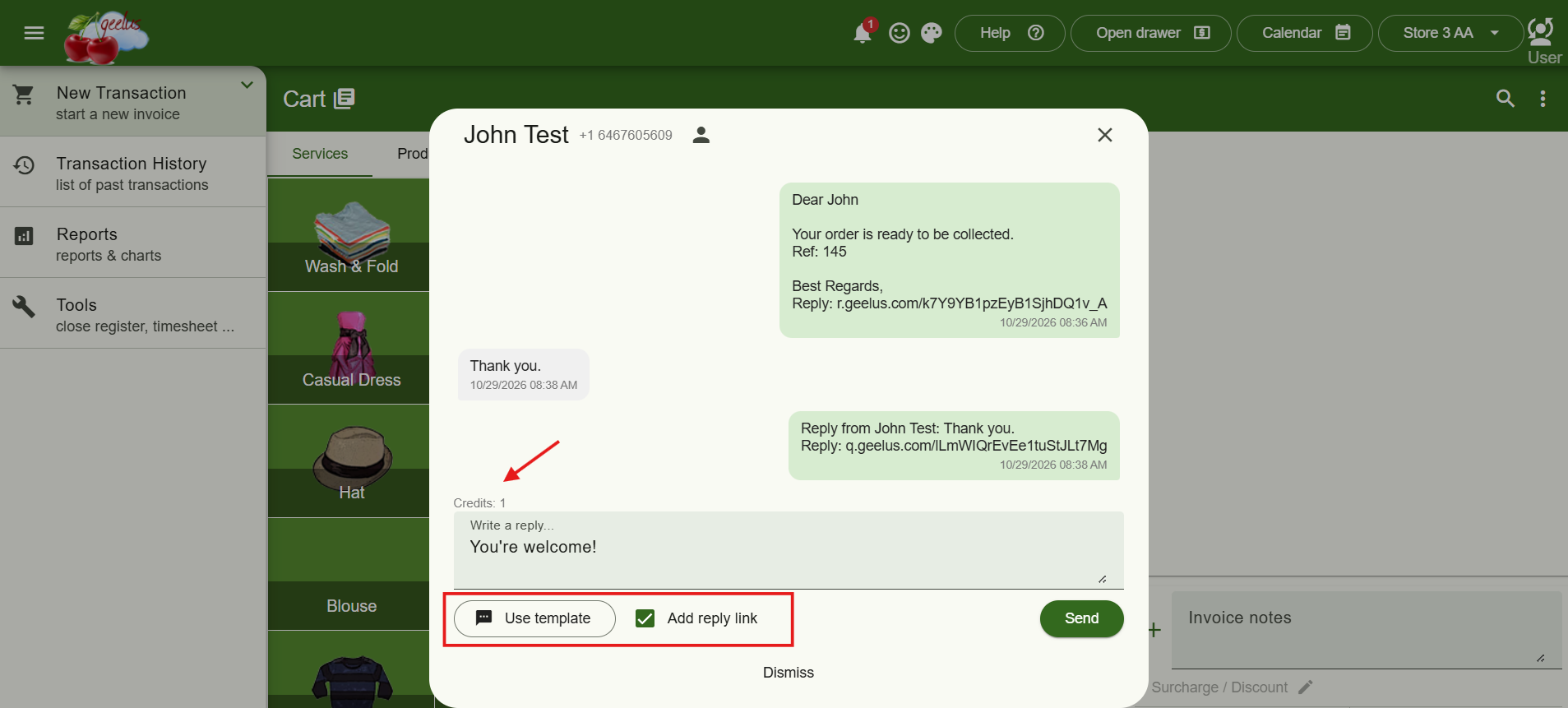
Answer right from the conversation
With the “can send custom text messages” permission, you can type a reply or send one of your transaction templates, tick “Add reply link,” and keep the conversation going — with the credit cost shown before you send.
Reply forwarding
Under Settings → Roles → Notifications, you can forward customer replies to an email address for free, or to a phone by text (one credit per forwarded reply). Every forwarded reply includes its own link so you can answer the customer on the spot without logging in — write your own message or pick a template. Each link works for one reply; when the customer answers again, the next forward brings a fresh link, so the whole conversation can run over text.
A new automation trigger
“Customer replied to a text message” is now available as an automation trigger — send an automatic email or text when a reply comes in, optionally limited to replies to a specific automation or replies containing certain keywords (perfect for “reply YES to confirm” flows).
Conversation View on the Customer Page
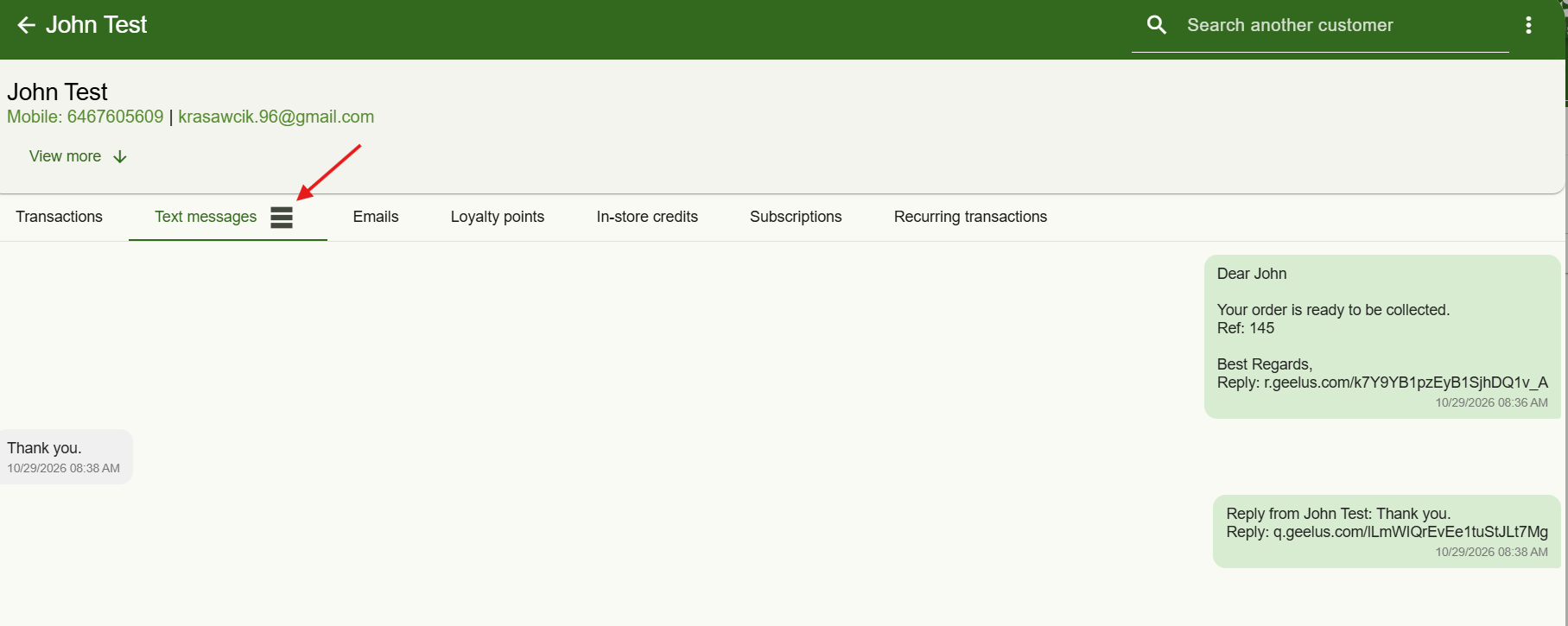
The Text messages tab on the customer page can now display the full exchange as a conversation — your messages on one side, the customer’s replies on the other. A button on the tab lets you toggle between the new conversation view and the classic table.
Two Separate Name Fields on the Self-Serve Kiosk
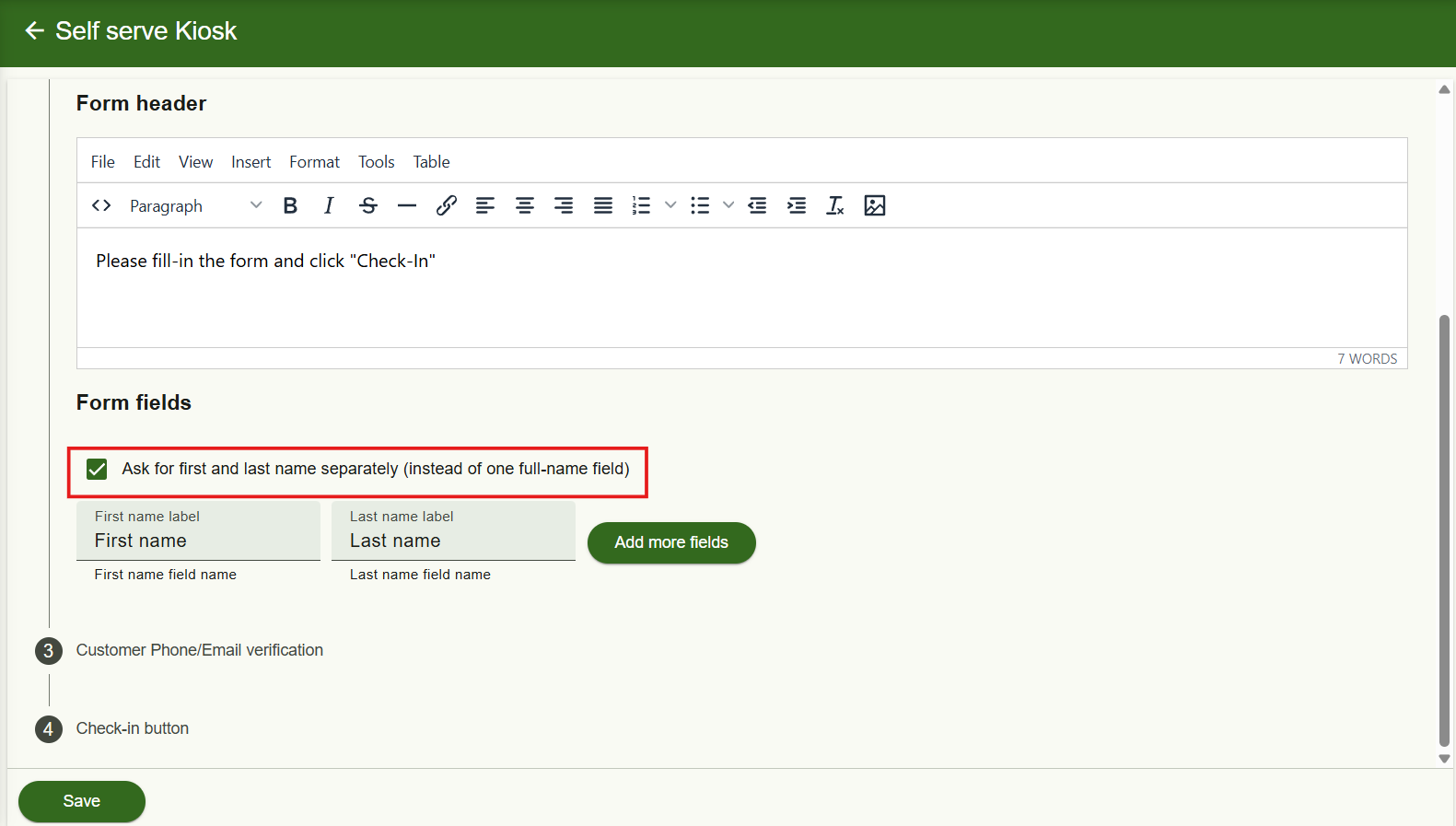
The self-serve kiosk check-in form can now collect first name and last name as two separate fields, each with its own customisable label, instead of a single full-name field. Turn it on under Settings → Self Serve Kiosk → Check-in → Customer Entry Form — the single full-name field stays the default. Either way, the customer record ends up with a proper first name, last name, and display name.
Bulk Invoices Report Overhaul
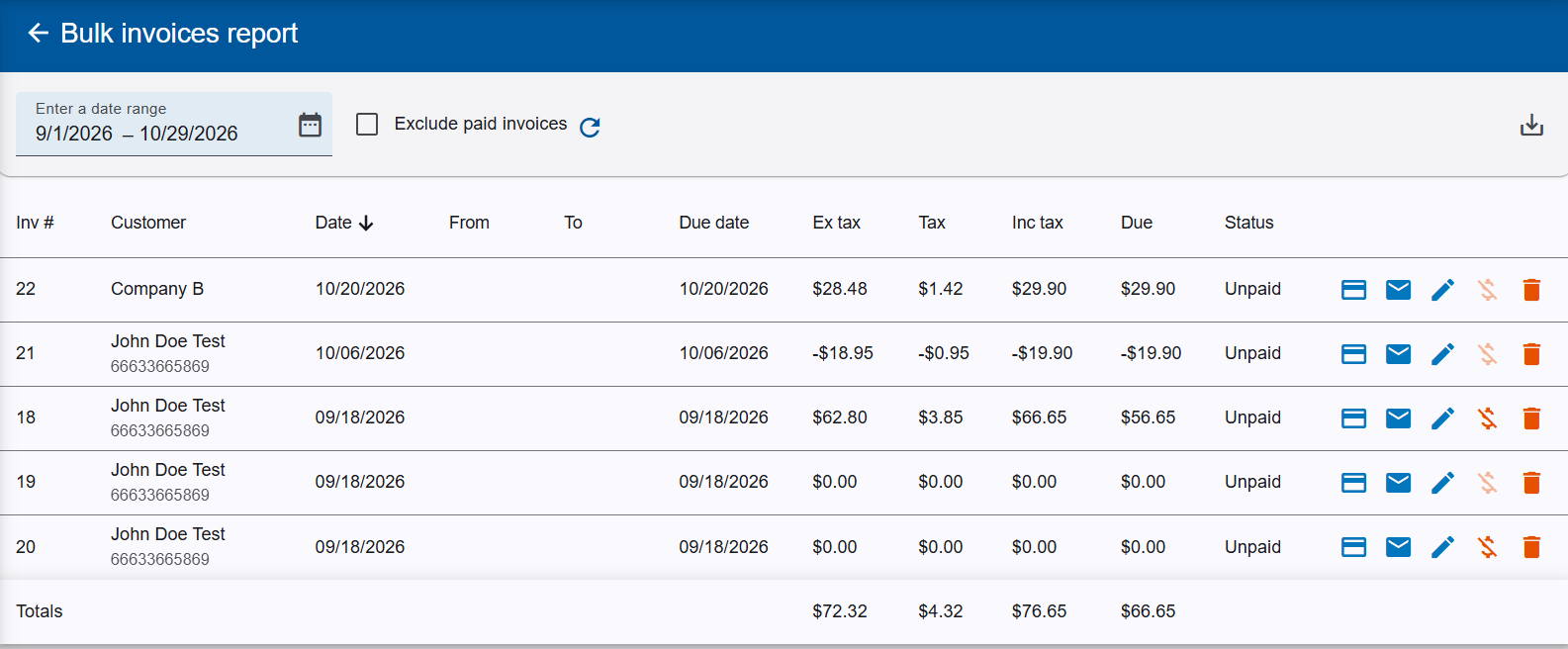
The Bulk Invoices report is now a proper data table: sortable columns, a pinned invoice-number column while scrolling sideways, new amount columns (ex tax, tax, inc tax, and due) with grand totals at the bottom, and CSV/Excel export of exactly what’s on screen. It’s built to stay fast even for invoices containing thousands of transactions.
Custom Text Messages Now Support Tags
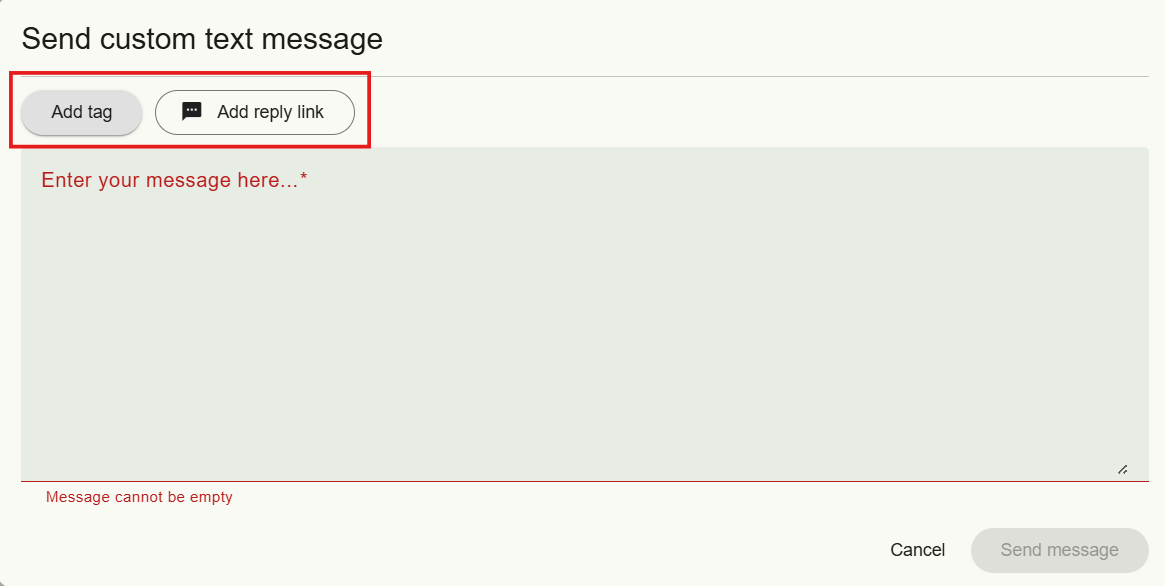
The “Send custom text message” window now has an “Add tag” menu with the same personalisation tags available in templates — customer name, balance, pickup date, and more — plus the “Add reply link” button.
Shorter Links in Your Messages
Links to the public transaction page, payment page, invoice pages, and booking pages are now around 40% shorter. Texts read cleaner and are less likely to spill into a second, chargeable message. All previously sent links keep working exactly as before.
Copy Transaction ID
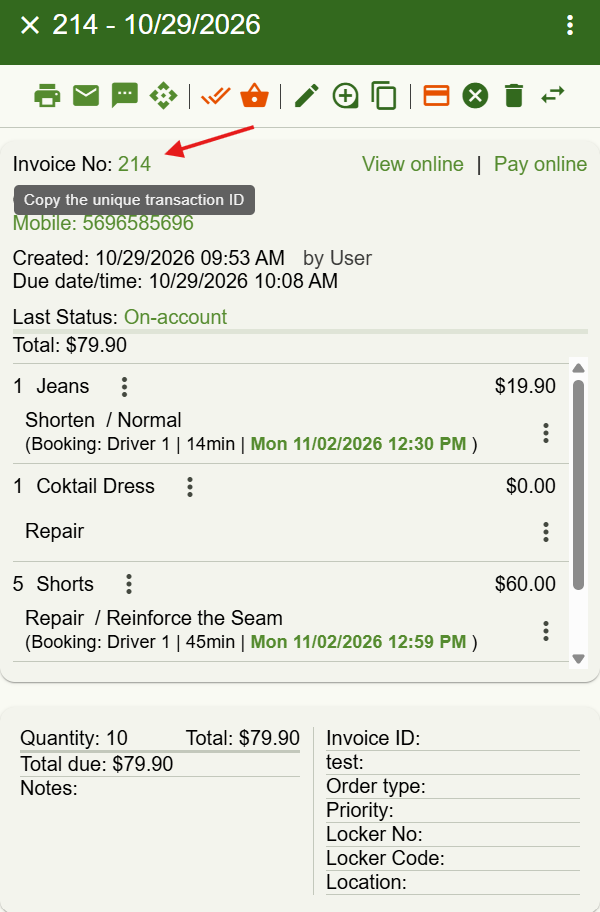
The transaction menu now includes a “Copy transaction ID” option, which copies the transaction’s unique ID to the clipboard — handy for looking up its payments in your payment provider’s portal (for example, finding it in the payment reference in Adyen). Simply click on the Invoice No and the ID will be copied to the clipboard.
Notes Keep Their Line Breaks Everywhere
Notes now preserve their formatting wherever they’re shown — on transactions in the app, on public transaction and payment pages, in emails, and in PDF invoices — for both transaction notes and per-item notes. Printed receipts and text messages are unchanged, and emails or PDFs sent before this update keep their previous formatting.